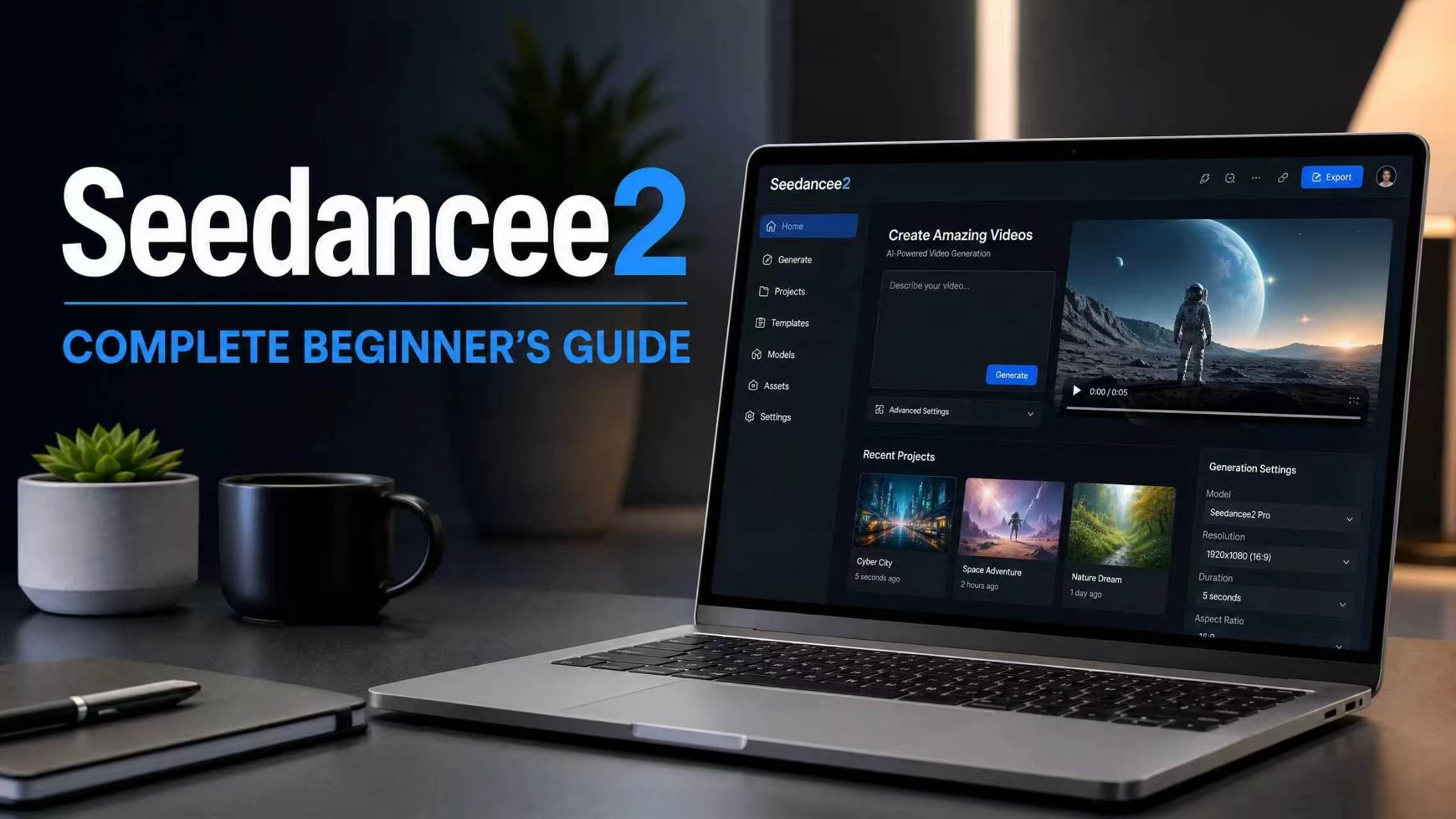
Seedancee2 is one of the most capable AI video generators available today . Whether you're making product demos, cinematic sequences, or social media clips, this guide walks you from your first prompt all the way to finished video.
You've seen the AI-generated clips flooding your feed. Smooth camera moves. Natural motion. Cinematic lighting. And you've wondered: can I actually make something that looks that good?
The answer is yes. Seedancee2 puts professional-grade AI video generation within reach — no editing background, no expensive gear, no learning curve measured in months. Just your ideas, a well-written prompt, and seconds of processing time.
Here's exactly how to get started and produce results you'll want to share.
What Is Seedancee2?
Seedancee2 is an AI video generation platform that turns text descriptions and reference images into high-quality, photorealistic video clips. Built for creators who need speed without sacrificing visual quality, it handles both text-to-video and image-to-video workflows in a single workspace.
Over 2.4 million videos have already been generated on the platform by more than 180,000 creators — from indie filmmakers and e-commerce brands to social media teams and music video directors.
What Makes Seedancee2 Different
Cinematic motion quality. The platform excels at producing natural, physically plausible movement. Characters stay consistent across frames. Camera moves feel intentional, not random. This isn't the flickering, morphing output you might have seen from earlier AI video tools.
Dual input modes. Start from a text description when you're building from imagination. Start from a photo when you want to animate something that already exists. Both pipelines feed into the same high-quality generation engine.
Camera-aware prompting. Describe your shot like a director — "slow push-in," "wide establishing shot," "overhead drone pan" — and the model respects those instructions with surprising precision.
No software to install. Everything runs in the browser. Upload, prompt, generate, download. That's the entire workflow.
How to Use Seedancee2: Step by Step
Step 1: Open the Generator
Go to seedancee2.ai and choose your mode:
· Text-to-Video — Build a scene from a written description. Best for creative concepts, abstract visuals, and scenarios where you don't have source imagery.
· Image-to-Video — Animate a photo or illustration you already have. Best for product shots, portraits, and extending existing visual assets into motion.
If you're new, start with Text-to-Video. It gives you the most creative freedom with the least setup.
Step 2: Write Your First Prompt
A good Seedancee2 prompt follows a simple formula that consistently produces better results than freeform descriptions:
[Subject] + [Action / Motion] + [Camera Direction] + [Style / Lighting]
Let's break down why this works:
· Subject tells the AI what to generate. Be specific. "A woman in a red coat" beats "a person."
· Action defines movement. "Walking slowly, glancing over her shoulder" gives the model clear behavioral cues.
· Camera direction controls framing and motion. "Slow tracking shot from behind" versus "static wide shot" produces completely different results.
· Style and lighting set the visual tone. "Cinematic realism, warm golden hour, shallow depth of field" locks in the look.
Example prompt using the formula:
*A man in a dark trench coat walking through a foggy London alley at night, slow tracking shot from behind, warm streetlamp glow reflecting off wet cobblestones, cinematic noir style*
The more specific your camera and motion instructions, the more predictable your output becomes. Generic prompts produce generic videos.
Step 3: Generate and Review
Click generate. Your first result will appear in seconds.
Here's the mindset shift that separates beginners from people who get great output: treat your first generation as a rough draft, not a final product. Don't judge it as "good" or "bad." Judge it as "what do I want to change?"
Watch your clip and ask:
· Is the subject clear and well-framed?
· Does the motion feel natural?
· Is the lighting matching what I described?
· Would a different camera angle improve this?
Step 4: Change One Variable at a Time
Once you have your draft, iterate methodically:
1. Keep what's working — the subject, the lighting, the general composition
2. Change exactly one thing — camera angle, motion speed, style descriptor
3. Regenerate and compare side by side
This approach consistently outperforms rewriting prompts from scratch. When you change everything at once, you can't tell which adjustment made the difference. When you change one variable, every improvement is traceable.
After 3-4 iterations with single-variable changes, most users land on something they're genuinely happy with.
Ready-to-Use Seedancee2 Prompts
Copy any of these, paste them in, and hit generate. Each one is built on the formula above and tested for reliable results.
Product & Commercial
Sneaker showcase
A sleek black athletic sneaker rotating slowly on a minimalist white pedestal, macro close-up studio shot, soft key light with subtle rim lighting, product commercial style
Fragrance luxury
A glass perfume bottle with amber liquid, slow push-in with background bokeh, warm studio lighting with golden reflections, luxury brand aesthetic
Cinematic & Atmospheric
Forest drone
Dense autumn forest from aerial view, slow forward drone movement, golden hour sunlight filtering through canopy, cinematic documentary style
Storm lighthouse
A solitary lighthouse on a rocky cliff during a storm, wide establishing shot, massive waves crashing against the rocks, dark brooding sky with lightning flashes
Portrait & Character
Wheat field
A woman in a flowing white dress standing in a sunlit wheat field, gentle breeze moving through her hair, medium shot, warm golden backlight, soft film grain
Urban & Street
Tokyo crossing
Shibuya crossing at night from overhead, fast motion of pedestrians and traffic, neon signs reflecting in wet pavement, vibrant city energy
Abstract & Slow Motion
Liquid metal
Liquid mercury droplets falling onto a dark surface in extreme slow motion, ultra macro close-up, studio lighting, hyper-detailed texture
Social & UGC Style
Coffee pour
A barista pouring latte art in a cozy cafe, handheld camera movement, natural window light, warm tones, lifestyle vlog aesthetic
Nature & Landscape
Volcanic beach
Ocean waves crashing onto a black volcanic sand beach at sunrise, low-angle wide shot, slow motion water spray, vivid gold and blue tones
Sci-Fi & Fantasy
Future skyline
A futuristic city skyline with flying vehicles at dusk, wide aerial shot slowly pulling back, purple and orange gradient sky, high detail
Common Mistakes (and How to Fix Them)
Overloading the prompt. You don't need to describe everything. Pick one clear subject, one clear action, one camera direction. Prompts that try to do too much confuse the model and produce messy results.
Mixing conflicting styles. "Photorealistic" and "anime" in the same prompt will fight each other. Pick one visual direction and commit. You can always iterate toward a different style in later generations.
Skipping camera direction. Always tell the model what the camera is doing — static, pan, track, push, pull, drone, handheld. This single instruction has more impact on output quality than almost anything else.
Changing too many variables at once. If you tweak the subject, the camera, the lighting, and the style all in one revision, you won't know what worked. One change per iteration. It's slower but smarter.
Giving up after one generation. The first output is almost never the best output. The people getting great results are the ones who iterate. Each generation teaches you something about how the model interprets your language.
Advanced Tips
Use Image-to-Video for character consistency. If you need the same face or object across multiple clips, start from a reference image rather than text. The model anchors on the visual input and maintains identity across generations.
Build a personal prompt library. Save your best-performing prompts organized by category — product shots, landscapes, portraits, abstract. Reusing proven structures saves time and gives you a head start on every new project.
Match prompt complexity to shot complexity. A simple static shot needs a simple prompt. Over-describing basic movement often confuses the model. Save detailed descriptions for complex scenes that actually need them.
Specify aspect ratio through camera language. Phrases like "wide cinematic establishing shot" or "vertical close-up for mobile" naturally guide the model toward the composition you want without needing explicit ratio settings.
Batch similar generations. When producing multiple clips for the same project, reuse the same style and lighting descriptors across prompts. This creates visual consistency across your output — essential for branded content and series.
Start Creating with Seedancee2
Now you have everything you need. The formula, the prompts,the iteration method and the mistakes to avoid.
Pick a prompt from the list above. Paste it in. Generate. Watch what happens. Then change one thing and do it again. That's the entire process — and it works.