How to Turn Images into Videos with Seedance 2.0
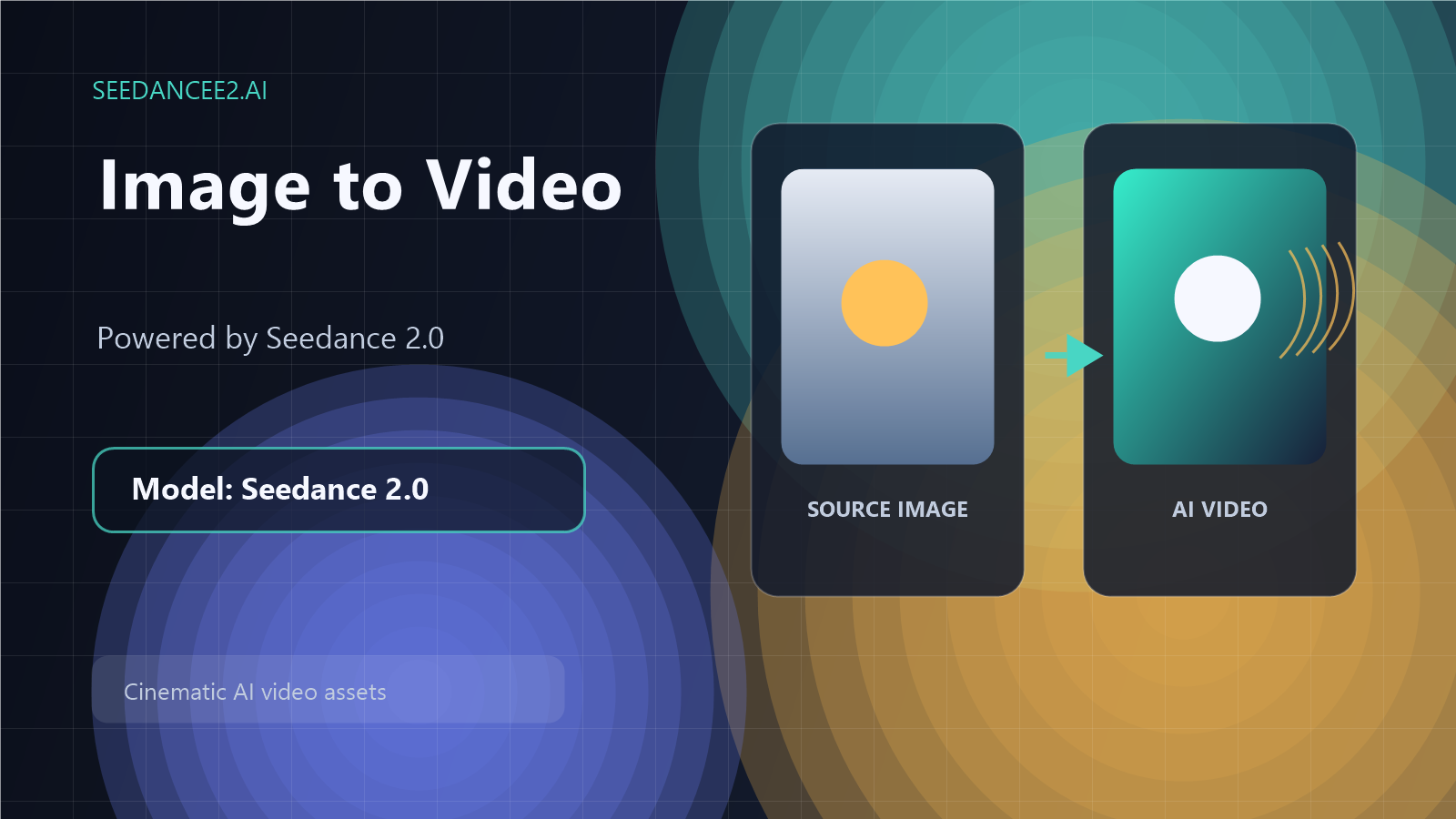
Image-to-video is one of the most practical ways to use AI video generation. Instead of starting from a blank prompt, you begin with a product photo, character image, campaign visual, sketch, or concept frame, then use AI to add motion.
On SeeDanceE2.ai, this workflow is powered by the Seedance 2.0 model. That matters because the goal is not just to "make an AI video." The goal is to guide Seedance 2.0 with a strong source image and a clear motion brief.
This guide shows how to turn still images into cinematic clips using SeeDanceE2.ai.
Why Start From an Image?
Text prompts are flexible, but images give the model a visual anchor. When you already have a product, character, environment, or design direction, an image helps keep the result closer to your intended subject.
Use image-to-video when you want to:
- Animate a product photo.
- Turn a character concept into a short motion clip.
- Create social ads from still campaign assets.
- Add motion to a landing page hero visual.
- Explore video directions before a larger shoot.
- Bring sketches or storyboards closer to finished video.
If you are new to the platform, read the broader Seedance 2.0 AI video generator guide first, then return to this image-to-video workflow.
What Makes a Good Source Image?
The quality of your input image strongly affects the quality of the final video. Seedance 2.0 can interpret visual direction, but it still needs a clean starting point.
Choose an image with:
- A clear subject.
- Good lighting.
- Minimal visual clutter.
- Enough resolution for detail.
- A composition that already looks close to the final frame.
- No important text that must remain perfectly readable.
For product content, use clean product photography whenever possible. For character or lifestyle content, choose a frame with clear posture, face direction, and scene context.
The Best Prompt Structure for Image-to-Video
When using an image, the prompt should not repeat everything the viewer can already see. Instead, it should describe what should happen next.
Use this structure:
Preserve + Animate + Camera + Atmosphere + Constraints
Example:
Preserve the product design and black background. Add a slow camera push-in as the bottle rotates slightly, with soft gold highlights moving across the glass. Premium beauty commercial style, realistic reflections, no text, no logo distortion.
This tells Seedance 2.0 what to keep, what to move, and what to avoid.
Image-to-Video Prompt Examples
Product Photo to Commercial Clip
Preserve the exact shape and color of the sneaker. Add a slow camera orbit around the shoe, subtle dust particles in the light, reflective studio floor, premium sports commercial style, clean background, no extra objects.
Best for: e-commerce, product launch videos, ad testing.
Portrait to Cinematic Character Shot
Keep the character identity and outfit consistent. Add gentle wind movement in the hair and clothing, slow close-up camera push-in, cinematic portrait lighting, shallow depth of field, realistic facial proportions, no extra people.
Best for: creators, storyboards, character teasers.
App Mockup to Launch Video
Preserve the phone shape and main screen layout. Add floating UI panels around the phone, soft camera orbit, bright workspace lighting, modern SaaS product video style, no fake readable text, clean motion.
Best for: startup landing pages, product demos, pitch visuals.
Food Photo to Social Clip
Keep the plated dish composition. Add rising steam, slight camera push-in, warm restaurant lighting, shallow depth of field, appetizing commercial style, no extra hands, no text overlay.
Best for: restaurants, food brands, short-form social content.
How to Avoid Common Problems
Image-to-video workflows can fail when the prompt asks for too many changes. If you want the subject to stay consistent, avoid asking Seedance 2.0 to completely redesign the image.
Use these rules:
- Ask for one main camera movement.
- Keep the original subject and composition.
- Avoid adding too many new objects.
- Use constraints for logos, faces, text, and product shape.
- Generate several versions before deciding.
For example, this is too much:
Turn this product into a futuristic city scene with flying cars, people, explosions, neon signs, and a dramatic camera move.
This is more controllable:
Preserve the product and dark studio background. Add a slow camera push-in with moving blue rim light and subtle reflection on the floor.
The second prompt gives Seedance 2.0 a cleaner task.
A Simple Workflow for Marketing Teams
Here is a repeatable SeeDanceE2.ai workflow for image-to-video content:
- Pick one campaign goal.
- Choose one strong source image.
- Write one motion brief.
- Generate three to five variations with Seedance 2.0.
- Select the version with the clearest subject and best motion.
- Export the clip.
- Use it in ads, landing pages, social posts, or creative tests.
Before producing a large batch, check the current SeeDanceE2.ai pricing page and choose the plan that fits your output needs.
Image-to-Video Ideas by Use Case
E-Commerce
Turn product photos into short product reveal clips. Add camera movement, lighting changes, and reflections while keeping the product shape stable.
Social Media
Animate a single strong visual into a short clip for TikTok, Instagram Reels, YouTube Shorts, or paid social testing.
SaaS and Apps
Use a product mockup image to create a polished launch visual. Keep UI text minimal and avoid relying on generated text inside the video.
Creative Concepting
Use Seedance 2.0 to test visual directions before committing to a full production. This is especially useful for mood boards, storyboards, and campaign pitches.
Internal Linking and Content Cluster Strategy
If you are publishing this article on the SeeDanceE2.ai blog, connect it to related product and educational pages:
- Main product page: SeeDanceE2.ai AI video generator
- Pricing page: SeeDanceE2.ai pricing
- Related guide: Seedance 2.0 AI Video Generator: A Practical Guide
This helps readers move from learning to testing the product, and it helps search engines understand the topic cluster around Seedance 2.0.
Final Checklist
Before you publish or use the final video, check:
- Is the original subject still recognizable?
- Is the motion smooth and intentional?
- Does the camera movement support the message?
- Are there unwanted objects or text?
- Does the clip match your brand style?
- Is the output suitable for the channel where it will be used?
Conclusion
Image-to-video is a practical way to get more value from existing visuals. With Seedance 2.0 on SeeDanceE2.ai, you can turn still images into cinematic clips for marketing, social content, product storytelling, and creative testing.
The best results come from a simple discipline: start with a clean image, describe the motion clearly, preserve what matters, and generate a few variations before choosing the final clip.
FAQ
Can Seedance 2.0 turn images into videos?
Yes. On SeeDanceE2.ai, Seedance 2.0 supports AI video creation workflows where a visual asset can guide the generated video.
What type of image works best?
Use a clear, high-quality image with one main subject, good lighting, and limited background clutter.
Should I describe the image again in the prompt?
Only describe the parts that matter. Focus more on what should move, what should stay consistent, and what style the final video should have.
Can I use this for product marketing?
Yes. Image-to-video is especially useful for animating product photos, campaign visuals, app mockups, and social media creative.